How to start with Appium and WebDriverIO

Testing Mobile applications requires specific tools and knowledge about frameworks, in this world’s we use mobile devices a lot!, we do banking transactions, take notes, learn, read, etc. There is an app for each one of them, we require that each of those apps work without disrupting our workflow or the task on hand, that is why it is important to test them to ensure everything is working as expected and the user is happy using it.
Sometime back I learned about WDIO capabilities and Appium to automate Android apps. I want to share you what you can do with WDIO and Appium, their capabilities and how to start using them to automate native applications, ok without more talking lets jump in.
Environment Setup
Android
You will need to meet several prerequisites:
Node.js Appium is built on Node.js, so you need to have it installed.
- Recommended Version: Node.js LTS
- Install Node.js from https://nodejs.org/en/download
Java Development Kit (JDK): Required for running Appium and Android Testing.
- Install JDK 11 or later (Recommended: JDK17)
- Setup the JAVA_HOME environment variable pointing to your JDK installation
Appium Server: This is the core component of Appium.
Android-Specific Prerequisites:
- Android SDK: Required for Android Testing.
- Emulator or Real Device: You’ll need either and Android Emulator or a real device for testing.
- ADB: Android Debug Bridge (ADB) should be accessible via the command line.
Install WebdriverIO and required packages
We are going to install WDIO and Appium Service dependencies.
npm install --save-dev webdriverio @wdio/cli @wdio/appium-service @wdio/mocha-framework chai
Let’s review what those dependencies do.
- webdriverio: The core WebDriverIO library that enables interaction with the WebDriver and Appium Server.
- wdio/cli: This is the WebdriverIO Test runner which help us to configure and run webdriverio tests.
- wdio/appium-service: This is used to control the starting and stopping services from appium.
- wdio/mocha-framework: Integrating with a test framework allow us to create better tests, to group them in tests suites and control their execution.
- chai: This is an assertion library used for writing validations.
Running the WDIO configuration helper
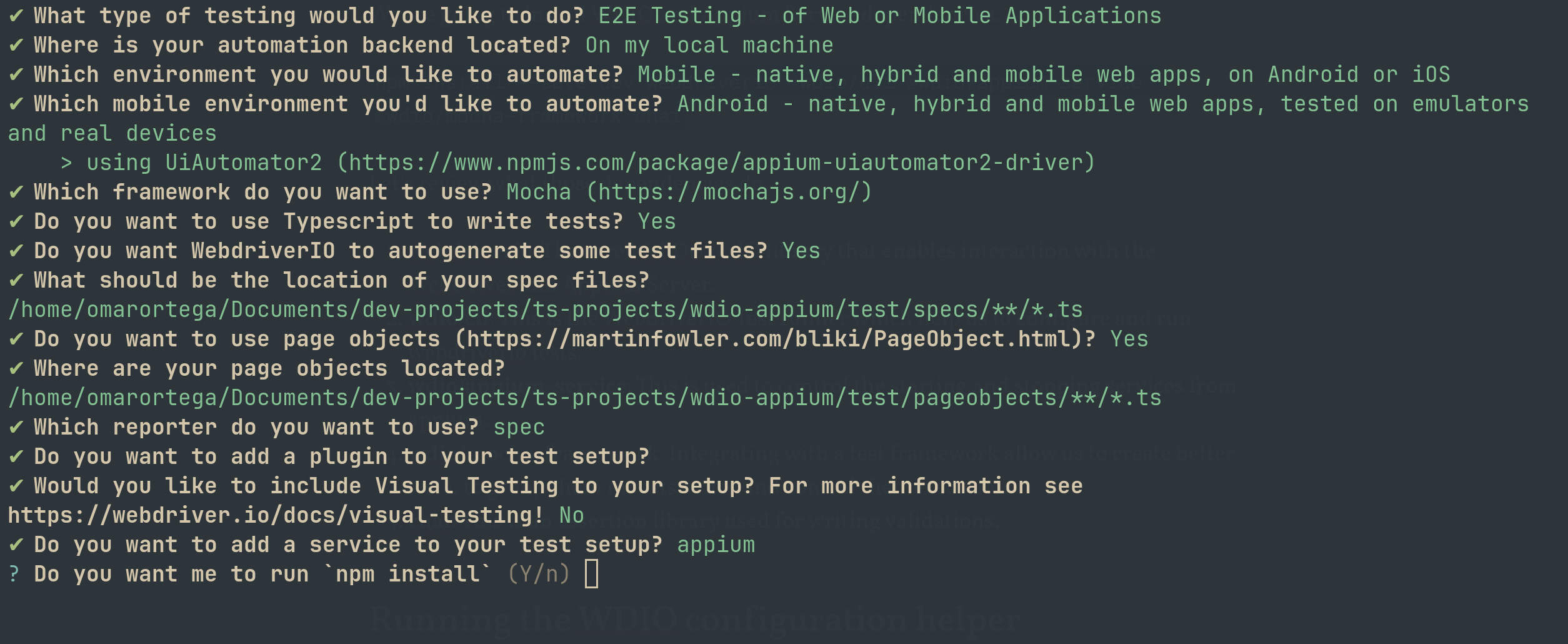
WDIO comes with a configuration wizard which ask us a bunch of questions which are going to be used to customize our configuration.
npx wdio config
Select the next options:
!
Configuring WDIO for Android
To be able to work properly with Android emulators or real devices, we create a custom wdio.config.ts. This file will allow us to customize the Appium Capabilities.
We are going to start by creating a common wdio.config.ts that will share common configuration across android devices.
wdio.config.ts
import { Options } from "@wdio/types";
export const config: Options.Testrunner = {
  runner: "local",
  specs: ["./test/specs/**/*.ts"],
  maxInstances: 1,
  logLevel: "info",
  framework: "mocha",
  reporters: ["spec"],
  services: ["appium"],
  port: 4723,
  waitforTimeout: 10000,
  mochaOpts: {
    timeout: 60000,
  },
};
wdio.android.conf.ts
import { config as baseConfig } from "./wdio.conf";
export const config = {
  ...baseConfig,
  capabilities: [
    {
      platformName: "Android",
      "appium:deviceName": "emulator-5554",
      "appium:platformVersion": "13.0",
      "appium:automationName": "UiAutomator2",
      "appium:app": "/path/to/android/app.apk",
      "appium:autoGrantPermissions": true,
    },
  ],
};
Now that the config files are created, the tests can be executed, but first we will need to add the script in the package.jsonfile to point to the wdio.android.conf.ts:
"scripts": {
	"android": "wdio run ./wdio.android.conf.ts"
}
Android app
The android app that I am using is the one created for the WebDriverIO team, it can be found in this link: https://github.com/webdriverio/native-demo-app/releases/tag/v2.0.0
The Android apk is what I am going to download to use as my app.
To setup the android capabilities appium:app, I will place the apk file inside a new folder within the root of my project with name apps.
The app capability must point to the relative path like this:
appium:app: './apps/android.apk
To be able to
Running the tests
Now I am ready to run the tests in my wdio project, first I will need to run the android emulator in my machine with Android 13 flavor.
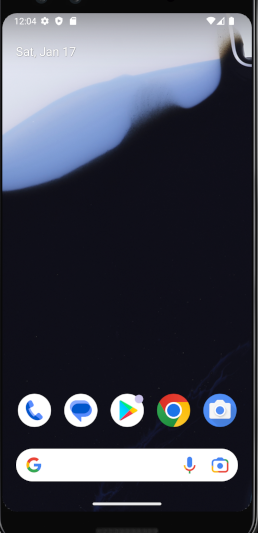
To run webdriverIO test, open the terminal and in the run of the project run the command:
npm run android
This command will launch the appium server and setup everything for us.
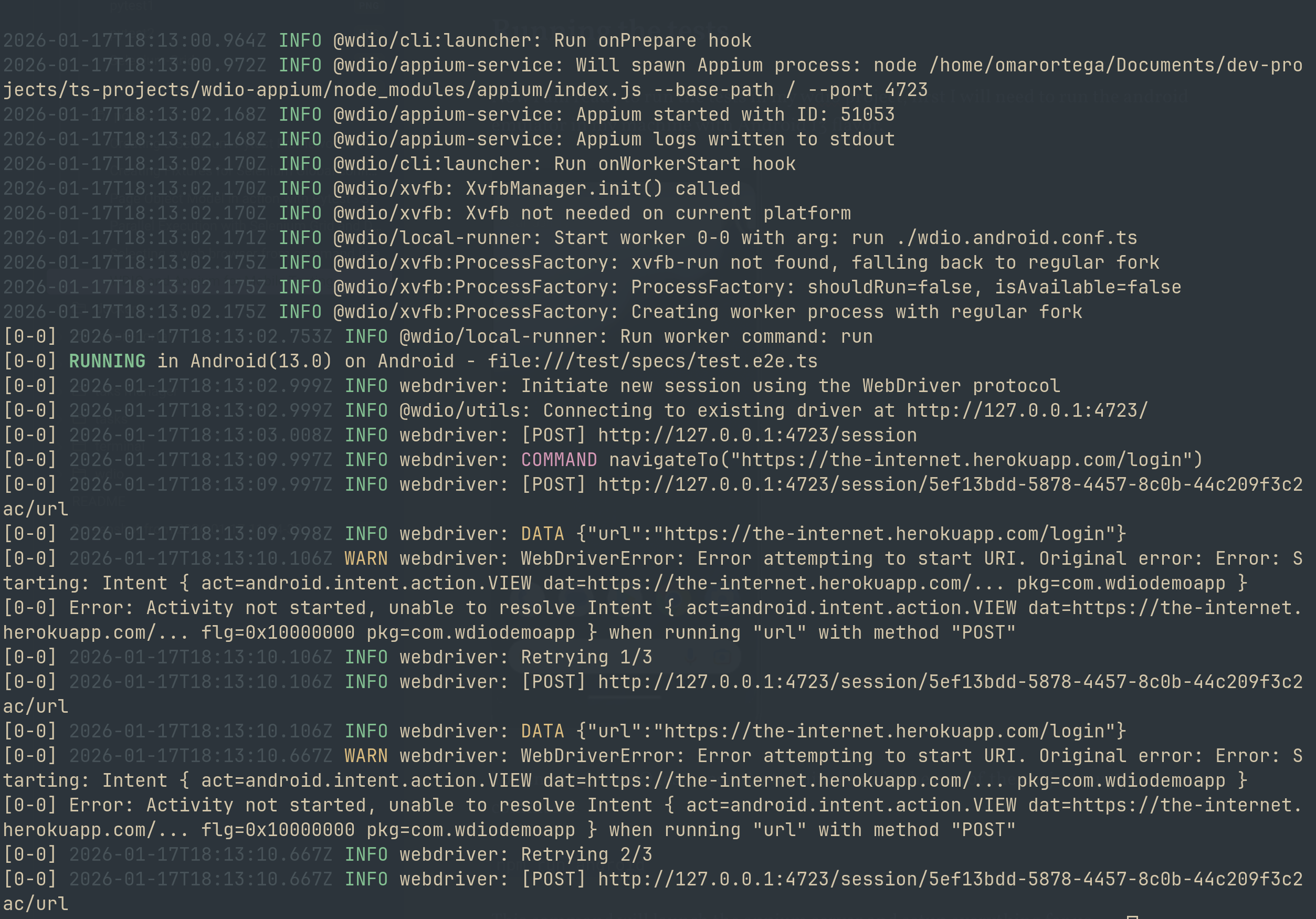
Great!!, everything is ready to start creating Android Tests!
Please find in this link the Github Repo for this project: https://github.com/omarortega87/appium-webdriverio